Upgrading your database version
Managed (flexible) database servers on MedStack Control run a specific major version of their database engine, such as PostgreSQL 13. When a newer major version becomes available, you can perform an in-place major version upgrade of the database server directly from the dashboard, for example moving a server from PostgreSQL 13 to PostgreSQL 15. This is a self-service action available to Owner and Admin roles on the cluster that contains the database server.
When you need it
Each major version of a database engine has a supported lifetime and is eventually retired. When a database server is running a version that is nearing end-of-life, MedStack Control surfaces this in the dashboard so you can upgrade ahead of time:
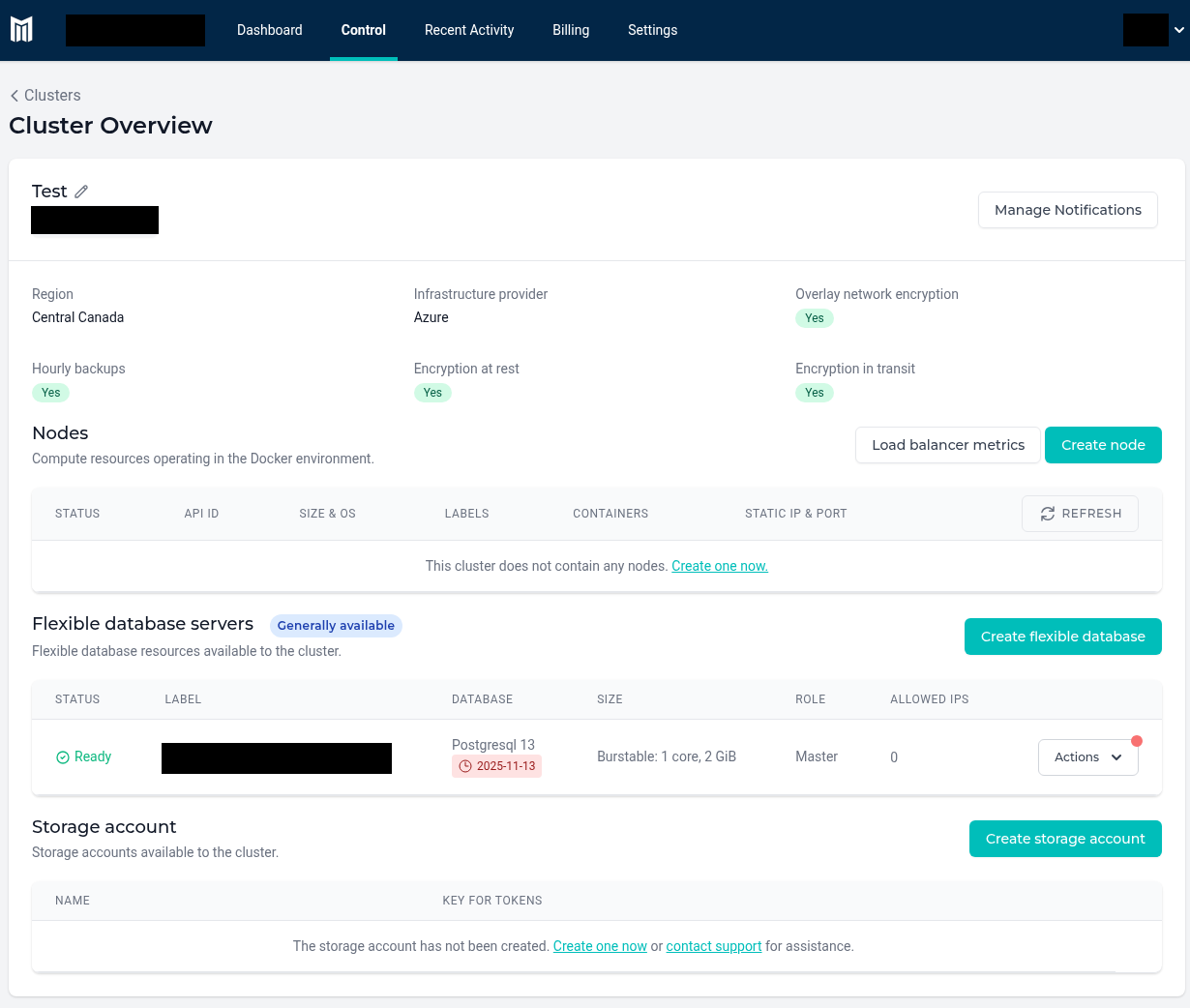
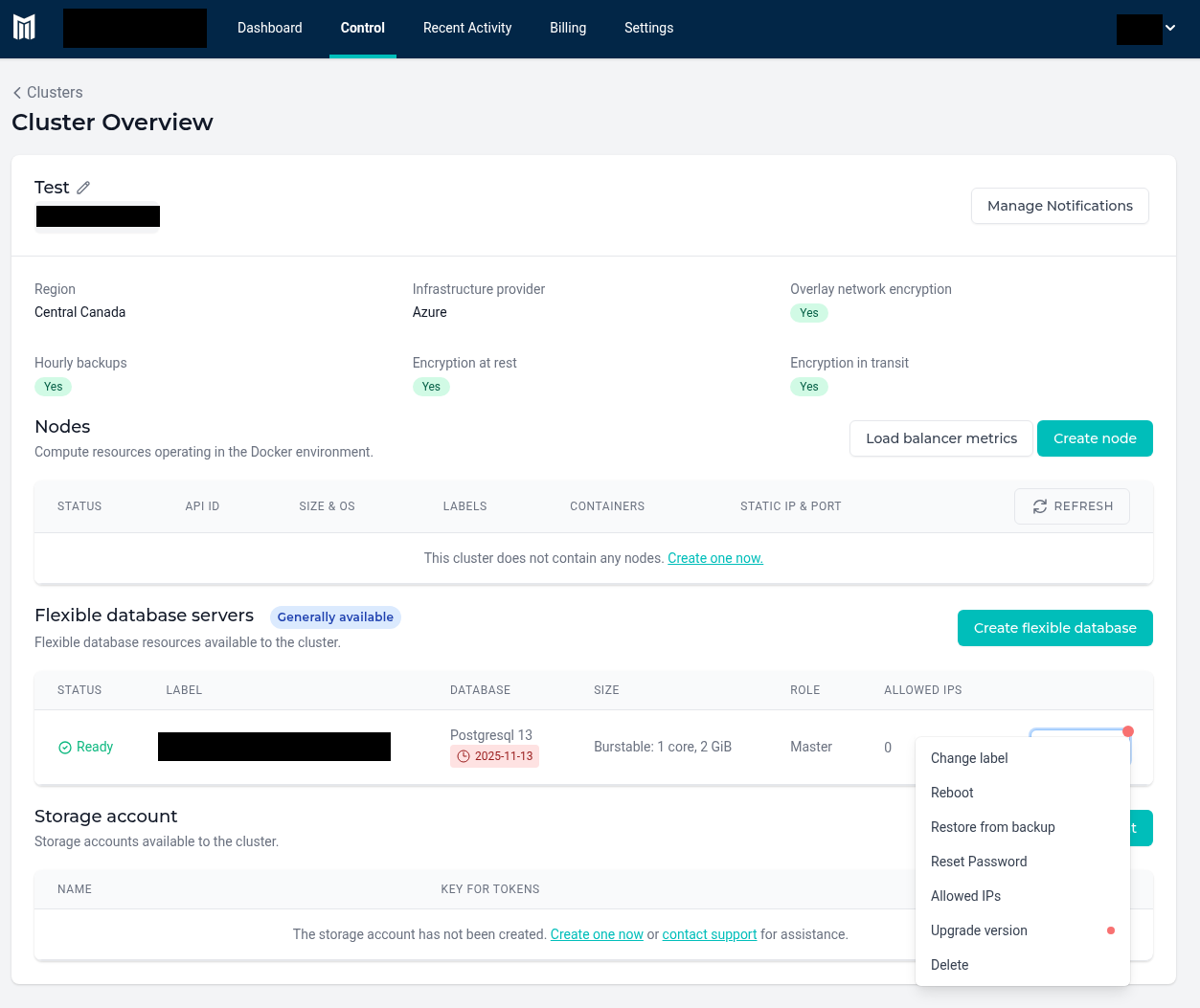
- A red indicator dot appears on the Actions menu of the database server's row, and again on the Upgrade version item within that menu.
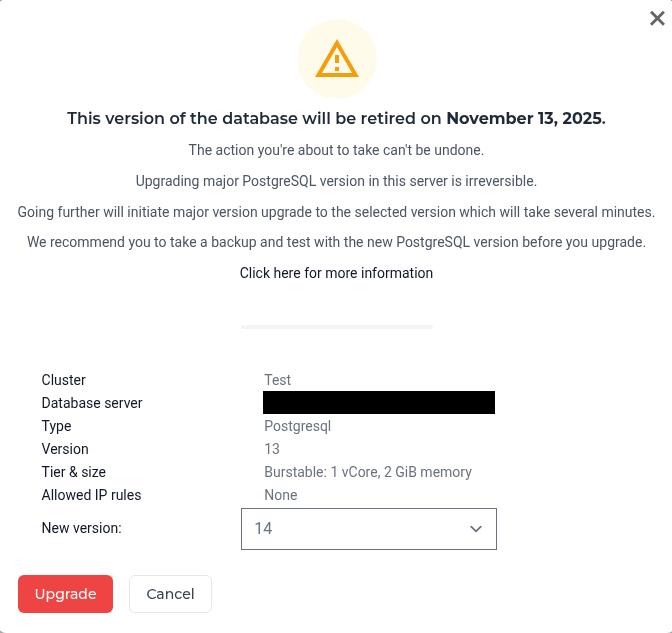
- The database's version is shown alongside its retirement date, and the upgrade dialog displays a banner stating the date on which the current version will be retired.
🚧 Upgrade before the retirement date to avoid extended-use charges
A database server that continues to run a version past its retirement date may incur extended-use charges, billed as a separate line item on your invoice. Upgrading to a supported version before the retirement date shown in the dashboard avoids these charges.
Before you upgrade
The upgrade dialog reiterates several important points. Please read them carefully before you proceed:
- The upgrade is irreversible. A major version upgrade cannot be undone. To return to the previous version you would need to provision a new database server on that version and migrate your data.
- The database is unavailable during the upgrade. The upgrade runs for several minutes, and the database server cannot serve connections while it is in progress.
- Take a backup first and test your application. We strongly recommend capturing a backup and testing your application against the new major version before you upgrade in production.
- A new major version can introduce breaking changes. Newer major versions may not be compatible with older client libraries, drivers, or database extensions. Confirm your application's dependencies support the target version.
For guidance on what a PostgreSQL major version upgrade involves, see Azure's documentation:
Steps to upgrade
- Open the cluster containing the database server you want to upgrade.
-
On the database server's row, open the Actions menu and choose Upgrade version.
-
Review the summary shown in the dialog, which confirms the cluster, database server, type, current version, tier & size, and allowed IP rules for the server you are about to upgrade.
-
Select the target version from the list of available versions in the New version dropdown.
-
Click Upgrade to confirm. The upgrade runs asynchronously and takes several minutes; the row shows an Upgrading version… status while it is in progress.

After upgrading
When the upgrade completes, the database server row returns to a Ready status and reflects the new version.

Once the upgrade has finished:
- Verify the version shown on the database server row matches the version you selected.
- Confirm your application reconnects and behaves as expected against the new major version.
📘 Your connection string does not change
Unlike restoring from a backup or resizing a database server — which provision a new server with a new connection string — an in-place version upgrade keeps the same database server and the same connection string. You do not need to update the connection details or allowed IP rules in your application after upgrading.
Need help?
If you have questions about upgrading a database server, or run into issues during or after an upgrade, please contact our support team.